AI Background Replacement Tool
Replace image backgrounds with custom scenes and environments using AI.
Free to use · Chat-style editing
Before and after
Made with this tool. Drag the handle to compare.

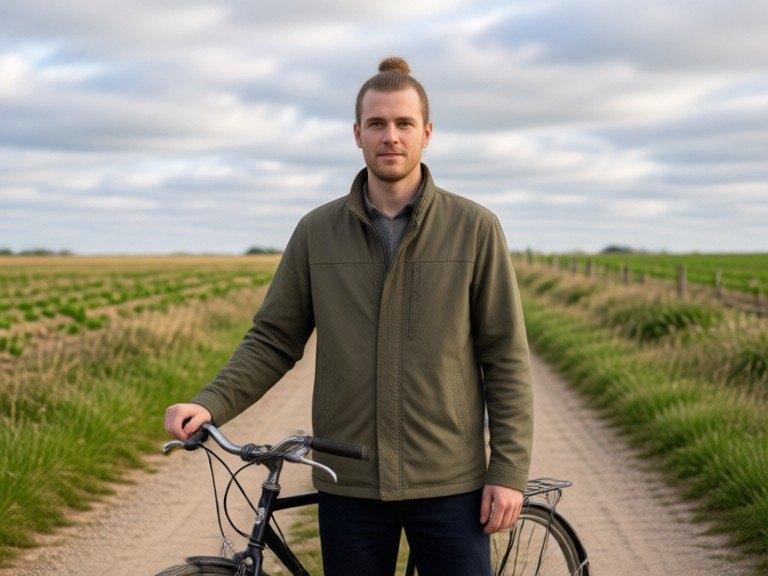 BeforeAfter
How to use AI Background Replacement Tool
1. Pick your options
Choose a style, upload an image if the tool asks for one, or type what you want.
2. Hit Generate
The AI does the work in seconds — free to use.
3. Download or copy
Save your result, copy it, or tweak the options and run it again.
Free to use · Works in your browser
What the background changer AI does
The background changer replaces what is behind the subject of a photo with a new scene you describe, while keeping the person or object in front. Upload one photo, write the background you want, for example 'a quiet beach at sunset' or 'a plain light grey studio wall', and an image editing model rebuilds the scene and tries to match light and perspective. Unlike a simple cut-out tool, it can also adjust the lighting on the subject so the new scene looks less pasted on.
How to change a photo background
Choose a photo where the subject has clear edges and is not cut off by the frame. Describe the new background with place, time of day and style: 'a modern office with large windows, daylight, slightly blurred' works better than 'an office'. Say what to keep, such as 'same person, same clothes, same pose'. Check the edges around hair, hands and loose clothing, then send a follow-up message to fix one thing, such as making the background more blurred or the light warmer.
Examples of use
Put a clean, neutral backdrop behind a profile or team photo. Move a casual snapshot to a nicer setting for a social post. Place a product on a simple surface or in a lifestyle scene for a mock-up. Try holiday-themed backgrounds for a card. If you only need the background removed, a background remover is quicker; if you want the AI to invent a whole new scene, describe it in detail here.
Honest limits
Hair, fur, glass and see-through fabric are the hardest edges and can look blurry or cut. The model may slightly change the subject, such as the colour of clothes or the shape of a hand, so check before you save. Lighting that is very different between the original and the new scene can still look fake. Text and signs in the background often come out garbled. Results from low-resolution or very dark photos are softer. Do not use a changed background to misrepresent where a photo was taken.